Enter invite code
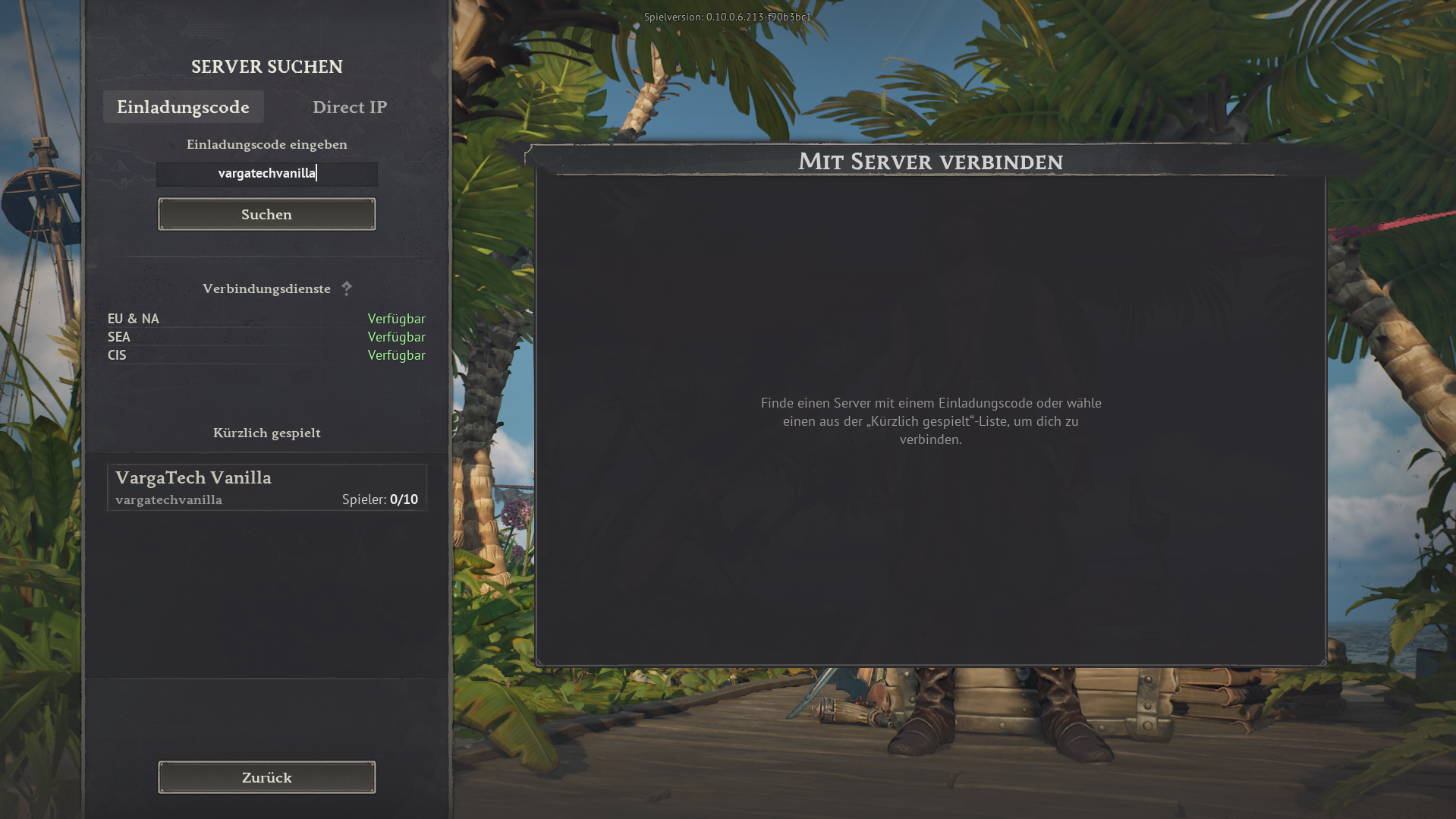
Open the in-game server search, choose Invite code, enter vargatechvanilla and click Search.
If you simply want to play without mods, you can join the separate Varga-Tech Vanilla Server directly in the game. You do not need Launcher/Chat, Web Mod-Sync or Varga-Tech server mods.
Important: this vanilla server is a separate Varga-Tech community option, not the MAIN mod server. Mod, sync and verify steps only apply to the MAIN mod server.
vargatechvanilla
In game: Server search → use invite code.
The vanilla server is for players who want to start without extra software and without mod synchronisation. Join directly in-game with the invite code.
vargatechvanilla.For the Vanilla Server, no Windrose mod files should be active in the local mod folder. Old MAIN mods can cause wrong content, loading issues, crashes or connection problems.
R5\Content\Paks\~modsR5\Content\Paks\~mods. Never select R5\Content\Paks itself. Backups must also never be inside R5\Content\Paks or ~mods, because Windrose can still read files there.Privacy: file names are shown locally in your browser only and are not sent to the server.
The tool runs only in your browser. You choose the folder yourself. Without your explicit selection, the website cannot see local files.
~mods as the mod source. Backups must be outside R5\Content\Paks; direct deletion stays disabled.This panel reads the locally generated status file for the Varga-Tech Vanilla server. It is privacy-friendly and does not publish IP addresses.
Player names are not shown publicly or nobody is currently detected.
Note: the live display is based on the local Varga-Tech server monitor and Docker logs. After restarts it may need a few seconds to detect players again.
Only counts, all-time high and optionally player names from server logs are public. IP addresses are not published.
In addition to this guide, you can open the vanilla server on the external Windrose Serverlist. Depending on availability, it may show current server data such as online status, player count, votes or further details.
Serverlist link: windrose-serverlist.net/servers/vargatech-vanillaNote: the server list is an external community service. For binding instructions, privacy information, support and guides, this Varga-Tech website remains the primary source.
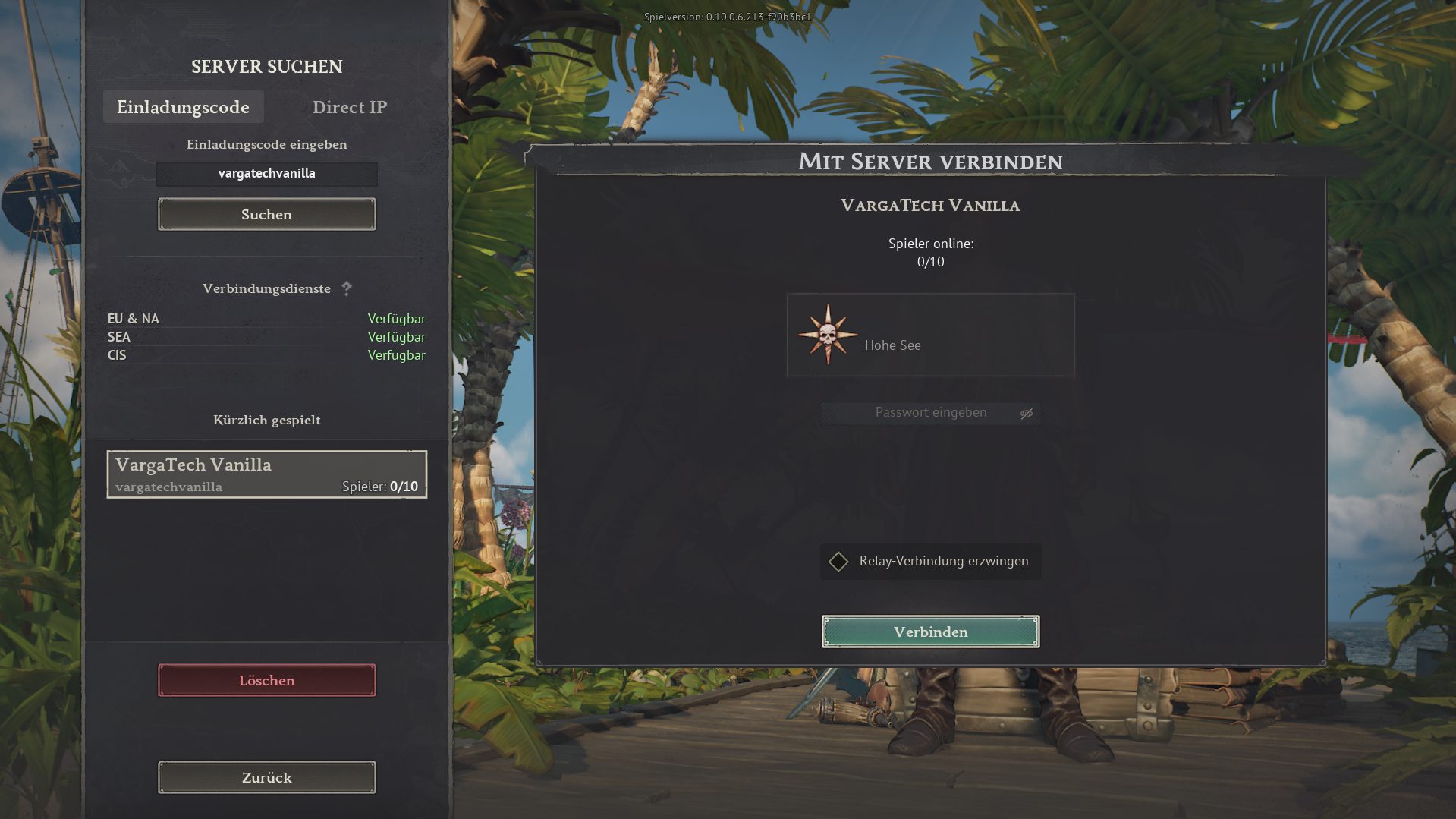
The images below show the in-game flow. The invite code is always vargatechvanilla.
Open the in-game server search, choose Invite code, enter vargatechvanilla and click Search.
Select VargaTech Vanilla. The connection view appears. Click Connect.
Players can post a short public question, look for group members or offer help. Posts should stay friendly, short and game-related.
The vanilla server does not require Varga-Tech mod synchronisation. Additional rules, passwords or later changes are announced on Discord or in the current server information.
The MAIN mod server is the modified Varga-Tech server option. Varga-Tech server mods must match exactly. Launcher/Chat, Web Mod-Sync and manual guide are available for that.
Open connection assistant